
Data export/import is a tool designed to handle the mass export and import of data. It allows users to easily transfer data between different software applications or systems.
What data can you mass export / import?
You can export & import the following data objects:
- products
- contacts
- organizations
- tax rules
- orders
- quotes
- leads
Please note that this data does not include object associations to other objects: e.g product options to products or tax rules to products.
How to mass export data
- Navigate to the data object you want to export data from
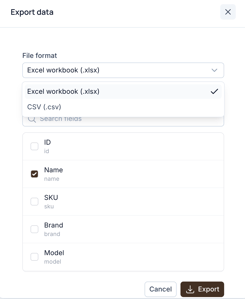
In this example, "Products" - Choose "Export" to open the export options

- Select the file format — Excel workbook (.xlsx) or CSV (.csv)
- Choose which fields to include in the export, then select "Export" to download the file
How to mass import data
Navigate to the data object you want to import data to (example: "Products"). Choose "Import".
How to ensure the data is formatted correctly:
1. If you have existing products: You can first download your existing data, update the fields you need, and then save and import it.
2. If you are uploading the products for the first time, when selecting "Import", the upload screen has a link to a template that you can use.

Select the file you want to import.

You will be notified about the amount of data that will be imported.
Click "Import data" to begin import.
Mapping CSV fields
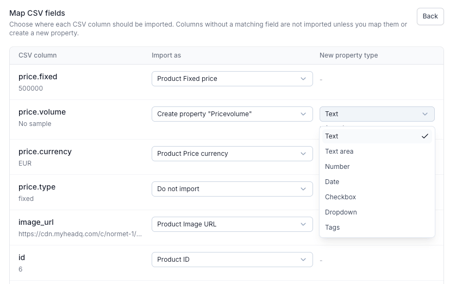
After selecting your file, HeadQ automatically maps your CSV columns to matching fields where possible. You'll always see a mapping screen where you can:
- Check that the automatic mapping is correct, and adjust it if needed — select the correct field from the "Import as" dropdown for each column.
- Create a new property for columns that don't have a match — select "Create property [name]" and choose a property type (Text, Text area, Number, Date, Checkbox, Dropdown, Tags).
- Choose "Do not import" for columns you don't want to import. Columns without a matching field are not imported unless you map them or create a new property for them.
Creating product relationships
During import, you can also create relationships between products using the Product relationships property. Several relationships can be created for the same product at the same time.
Relationships are defined in the CSV file using SKU — list the SKUs of the related products in the same field, separated by commas.
Matching priority for existing products
When importing data for products that already exist, HeadQ matches each row in the following priority order:
- ID (HeadQ ID)
- SKU
The ID is checked first. If a row's ID matches an existing product, that product is updated — even if the SKU in the file differs from the product's current SKU. In that case, HeadQ updates the SKU on the matched product to the new value from the file.
Select the file you want to import. You will be notified about the amount of data that will be imported. Click "Import data" to begin. Once complete, you will be notified of the changes.
Once the import is done, you will be notified of the changes.

⚠️ If you run into trouble with import, ensure you have the correct data formatting. You can do this by making sure you use the correct CSV template.