
Signed-in customers can see all their company's orders in one place and choose from the company's saved shipping addresses when they check out. You manage the shipping addresses in HeadQ, and you can follow each company's orders on its company page.
Where in HeadQ: Contacts → Organizations → open a company → Orders and Addresses
Where in the Storefront: Account area → Order history and Shipping addresses
1. Order History in the Storefront
Under Order history, customers see every order and quote request placed by their company. This includes orders made in other ways, not only through the Storefront.
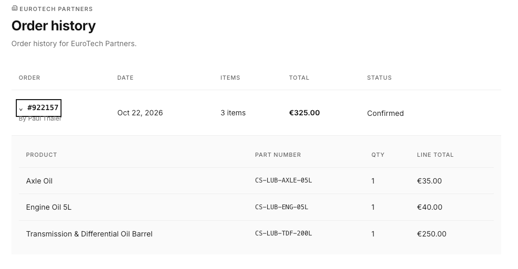
For each order, the customer sees:
- Order — the order number and who placed it
- Date — when the order was placed
- Items — the number of items in the order
- Total — the order total
- Status — the order's status, for example Confirmed
Click the order number to open the order and see its products, part numbers, quantities and line totals.
Because orders belong to the company, everyone on the team sees the same order history, including orders placed by colleagues.
Tip: If your customers order the same products regularly, they can save them as a cart template and add them to the cart again with one click. See Storefront Cart Templates.
2. Orders in HeadQ
On the company page, the Orders tab lists all the company's orders, with the order number, date, number of items, value and status. Total spend at the top shows the total value of the company's orders.

The tab is a list only. Click an order to open it in the Orders view, where you handle it as usual.
3. Shipping Addresses in the Storefront
Under Shipping addresses, customers see the addresses saved for their company. The company's default address is marked Default.
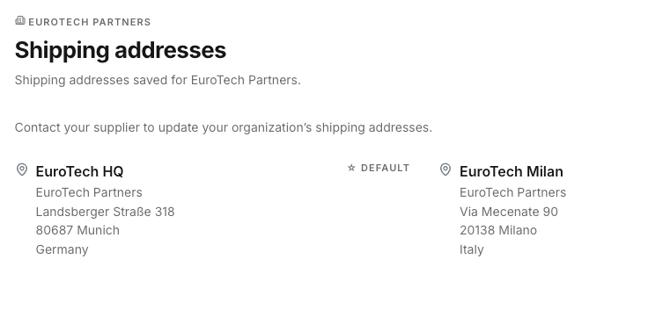
Customers can't add or change the saved addresses themselves. If an address needs to be added or updated, they contact you.
Addresses at Checkout
At checkout, the customer chooses one of the saved addresses as the shipping address, or types in a new address for that order.
For the billing address, the customer chooses whether it's the same as their contact address, the same as the shipping address, or a different address.
4. Managing Shipping Addresses in HeadQ
- Go to Contacts → Organizations and open the company.
- Go to the Addresses tab.
- Click Add address. The Add address window opens.
- Fill in the address:
- Label — a name for the address that the customer sees, for example EuroTech HQ or Milan warehouse
- Company, Street, Postal code, City and Country
- If this should be the address that's selected by default at checkout, select Default shipping address.
- Click Save address.
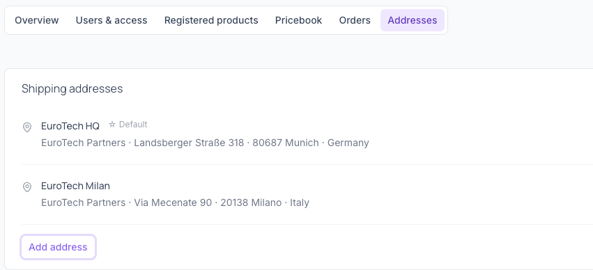
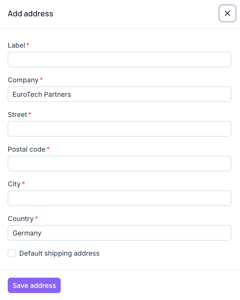
The address appears right away under Shipping addresses in the customer's Storefront account.
Tip: Give each address a clear Label. Customers see the label first, so a name like Milan warehouse is easier to pick at checkout than a street address.
Summary
Customers see all their company's orders and quote requests under Order history in the Storefront, and can open each order to see its products. In HeadQ, the Orders tab on the company page lists the same orders and opens them in the Orders view. Shipping addresses are managed by you on the company's Addresses tab: click Add address, give the address a Label and, if needed, make it the Default shipping address. Customers see the saved addresses under Shipping addresses and choose one at checkout, or type in a new address for that order. If you have any questions, feel free to contact our support team.