
Quick RFQ is configured separately for each configurator, meaning different configurators can use different quote request flows. The feature is enabled through the Next proposed action settings on the configurator.
Next proposed action options
The Next proposed action setting controls what happens when the end customer clicks the primary action button in the configurator. The following options are available:
- Checkout – The customer proceeds to place an order directly.
- Request for quote – A traditional quote request flow that uses the checkout process.
- Quick RFQ – A lightweight quote request form displayed directly in the configurator, without redirecting to checkout.
- Dynamic – The action is determined by rules, directing the customer to either a quote request or an order flow depending on their configuration.
Enabling Quick RFQ
- Open the configurator you want to configure.
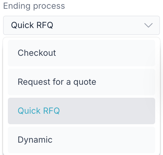
- Navigate to the Next proposed action settings.
- Select Quick RFQ as the action type.
Configuring the Quick RFQ form
When Quick RFQ is enabled, you can select which fields are shown to the customer when they submit a quote request. Fields can be added from the following sources:
- Contact fields – Standard contact information fields.
- Organization fields – Fields related to the customer's organization.
- Additional questions – Custom questions. You can either create a new question or reuse questions that have previously been added to the checkout flow.
Although it is possible to omit the email field or make it optional, many integrations use email to identify contacts. If email is not collected, some integrations may not function correctly.
The end customer experience
When the end customer clicks the Request a Quote button at the end of the configurator, the quote request form opens directly within the configurator — no redirect to checkout occurs.
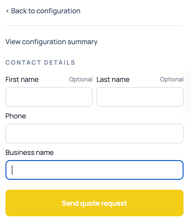
The form displays the configured fields. The customer can also expand a View configuration summary section to review their selections before submitting. The summary lists the configured product and all chosen options.
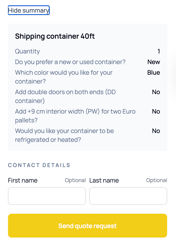
Once the customer has filled in the required fields, they submit the request by clicking the submission button — labeled Send quote request by default, or whatever custom label has been configured.