
Homepage content (headings, descriptions, button labels) is localized per storefront language: pick the language from the selector at the top of the page before editing text. Use Preview homepage at any time to open the live storefront in a new tab and check how your changes look.
Where: Settings → Storefront → Homepage
Note: Remember to add translations for every language configured in your store's settings. Localized fields (Hero copy, CTA button labels, Spare part search text, etc.) only display correctly on each storefront market if content has been entered for that market's language too.
1. Hero section
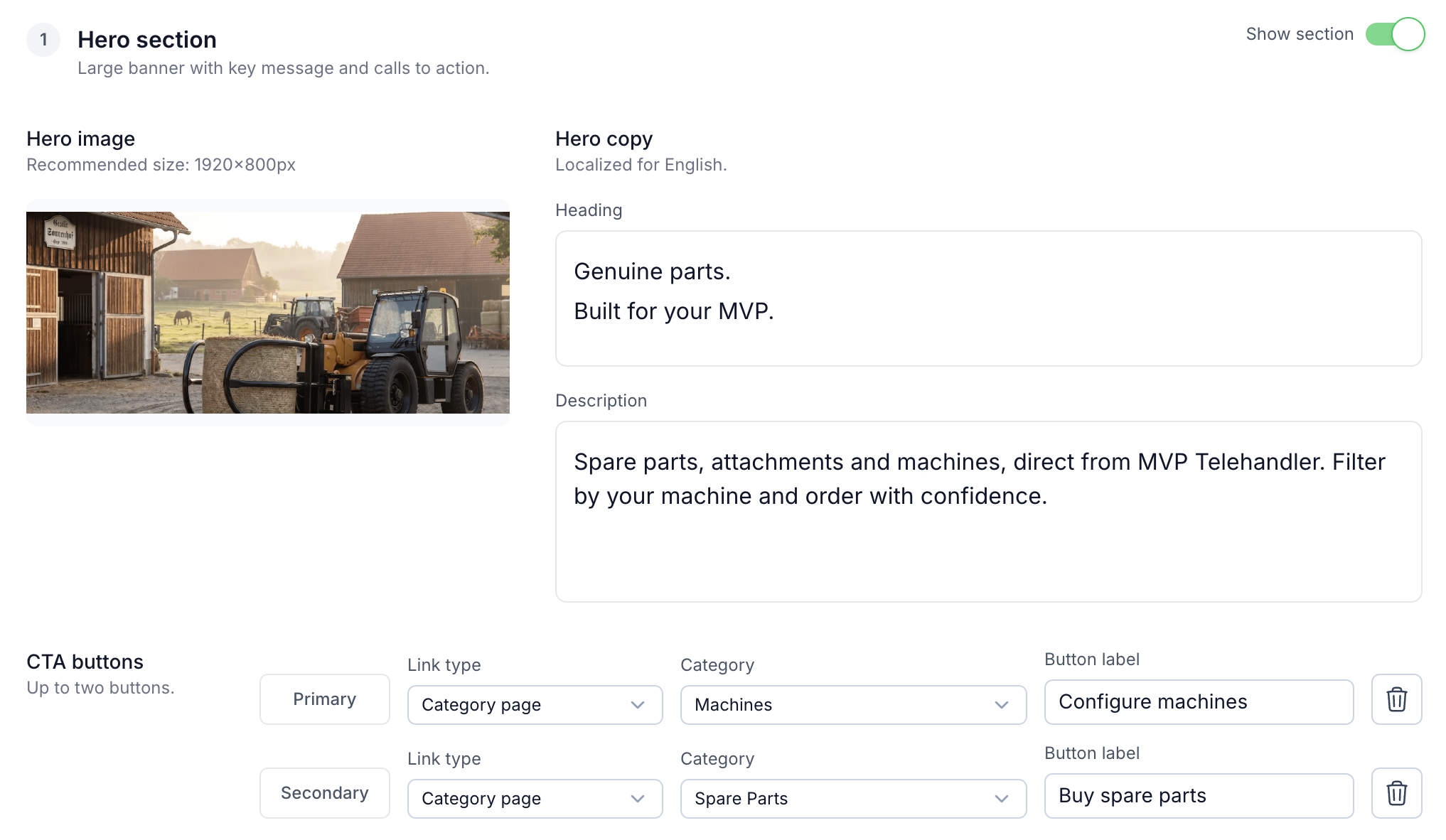
The hero section is the large banner at the top of the homepage, combining an image, a short message, and up to two buttons.
- Show section — turns the hero banner on or off.
- Hero image — the banner background image. Recommended size: 1920×800px.
- Hero copy (localized per language):
- Heading — the main message, e.g. "Genuine parts. Built for your MVP."
- Description — supporting text shown below the heading.
- CTA buttons — up to two buttons, Primary and Secondary. Each button has:
- Link type — where the button leads: Category page, Product page, Configurator page, or External URL.
- A target field that matches the selected Link type — for example, choosing Category page shows a Category dropdown to pick which category the button opens.
- Button label — the text shown on the button, e.g. "Configure machines."
- A trash icon removes the button.
2. Spare part search
An optional section that lets buyers search for spare parts for a specific machine and jump straight to a category of matching products. It has its own Show section toggle and is configured the same way as the other sections, but the full setup — heading, button text, destination categories, and how the product filters narrow the search — is covered in a dedicated guide:
Read More: Storefront: Spare Part Search Settings
3. Highlighted categories
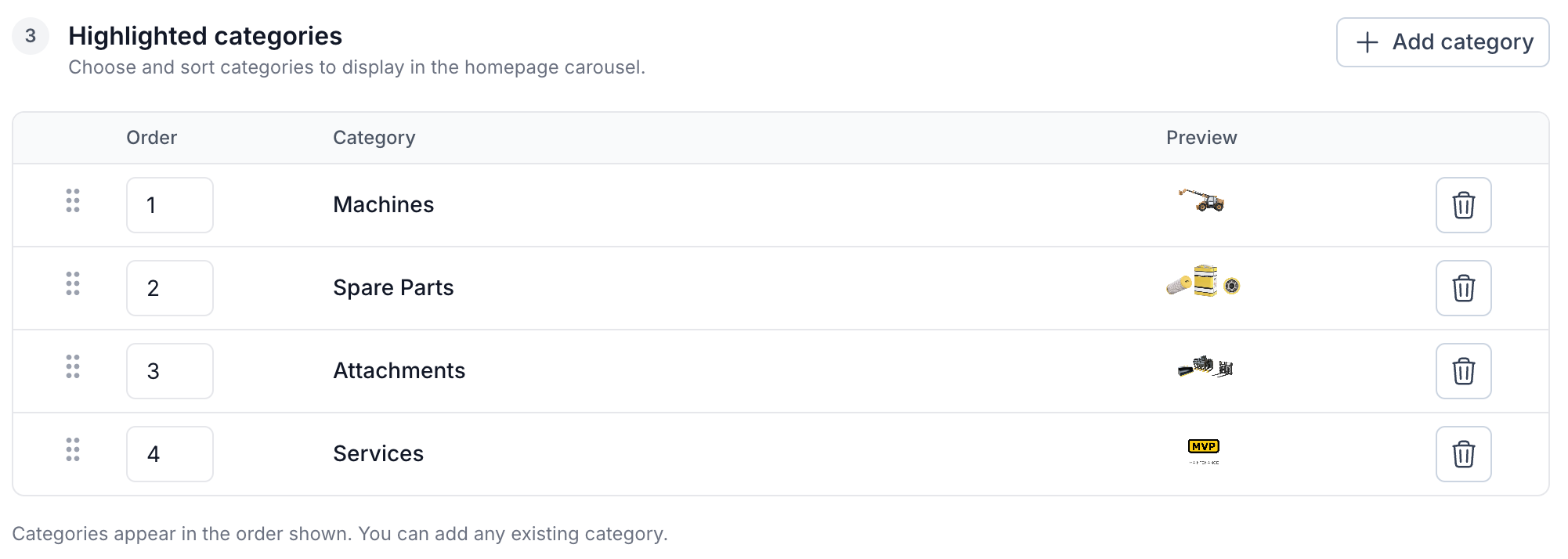
A carousel of categories featured on the homepage.
- Order — sets the sequence categories appear in on the storefront; reorder rows by dragging the handle or editing the order number.
- Category — any existing category can be added.
- Preview — shows the category's icon/thumbnail as it will appear in the carousel.
- + Add category — adds a new row to the carousel.
- A trash icon removes a category from the carousel.
Summary
The Storefront homepage is configured under Settings → Storefront → Homepage, section by section, with each section's own Show section toggle. The Hero section sets the banner image, heading, description, and up to two CTA buttons; the Spare part search (see the dedicated guide) lets buyers filter down to matching products; and Highlighted categories controls which categories appear in the homepage carousel and in what order. Text content is localized per storefront language, and Preview homepage lets you check the result on the live site before publishing further changes.