
Note: Layout settings are only visible and available to customers who have purchased the Storefront add-on, a paid add-on.
Header
Storefront favicon
The favicon is the small icon shown in browser tabs and bookmarks when a customer visits your storefront.
- Click the favicon icon to upload a new image or choose one from the gallery.
- New uploads are automatically cropped to a square and saved as a PNG.
Header navigation
Header navigation controls which main product categories appear in your storefront's top navigation bar, and in what order.
- Each category has a toggle — turn it on to show it in the header, or off to hide it.
- Drag a row by its handle (⠿) to reorder the categories.
- Click Reset to default to restore the original category set and order.
- The Navigation preview panel on the right shows a live preview of how the enabled links will appear in your storefront header as you make changes.
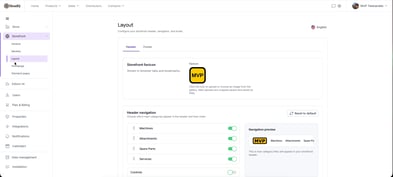
Note: Changing a toggle or the order doesn't save automatically. A Save changes bar appears at the bottom of the page — click Save changes to apply your changes, or Cancel to discard them.
Footer
Switch to the Footer tab to configure the footer's basic info and link groups.
Footer basic info
- Store name — the name displayed in the footer.
- Tagline — a short tagline shown alongside the store name in the footer.
Footer link groups
Footer link groups let you organize links into named groups (for example, "Product categories") that appear in the storefront footer.
- Click + Add group to create a new link group, or use the pencil icon on an existing group to rename it.
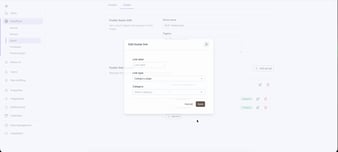
- Within a group, click + Add link to add a new link, or the pencil icon next to an existing link to edit it.
- In the Edit footer link window, fill in:
- Link label — the text shown for the link.
- Link type — choose Category page, Standard page, or External URL.
- Category — when Link type is set to Category page, select which product category the link should point to.
- Click Save.
Use the trash icon to remove a link or an entire group.
Multi-language storefronts
If your storefront is available in more than one language, use the language selector in the top-right corner of the Layout page to switch between them.
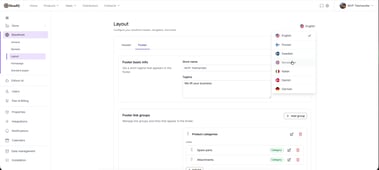
Note: Header and footer content (favicon, header navigation, tagline, footer links, and so on) is configured separately per language. Remember to go through your Layout settings in every language your storefront supports, not just the store's default language — content you set up under English, for example, won't automatically carry over to Finnish or Swedish.
👉 Read more: Storefront Settings for how languages are enabled for your storefront.