
Where: Settings → Storefront → Homepage → Spare part search
Section settings
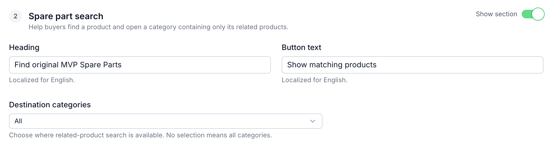
At the top of the section is a Show section toggle, which turns the whole spare part search on or off for the homepage.
- Heading — the title shown above the search, e.g. "Find original MVP Spare Parts." Localized per storefront language.
- Button text — the label on the search button, e.g. "Show matching products." Localized per storefront language.
- Destination categories — restricts which categories the search is allowed to send buyers to. Leaving this on All (no selection) means the search can lead to any category in the store.
Product filters — how the search itself is built
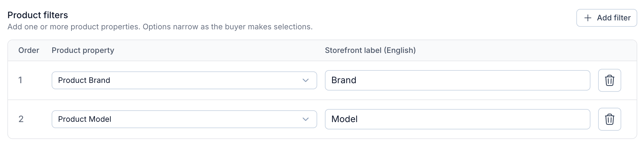
The actual search is defined under Product filters. Each filter is a Product property (for example Product Brand or Product Model) with its own Storefront label — the text the buyer sees for that field. Add filters with + Add filter, and each row also has an Order, which sets the sequence the filters appear in on the storefront.
At least one filter is required.
Filters narrow step by step. The search works by filtering: each filter the buyer fills in narrows the result set further.
- If the buyer only selects a value in the first filter (e.g. picks a Brand) and stops there, the search returns essentially everything that matches that first selection — all models, all related products under that brand.
- The more filters the buyer selects (e.g. Brand and Model), the more precisely the search narrows down, until it points to the exact category of matching spare parts.
This is why filter order matters: the first filter should be the broadest property (like Brand), with later filters narrowing further (like Model).
What buyers see
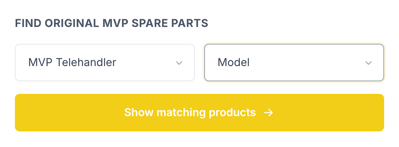
On the published homepage, the section shows the configured heading, followed by one dropdown per filter (in the configured order) and the search button. As the buyer picks a value in one dropdown, the next dropdown's options narrow to match. For example, with Product Brand and Product Model as filters:
- Heading: "Find original MVP Spare Parts"
- First dropdown (Brand): buyer selects "MVP Telehandler"
- Second dropdown (Model): options are now limited to models available for MVP Telehandler
- Button: "Show matching products" — takes the buyer to the category containing only the matching parts
Summary
Configure the Spare part search under Settings → Storefront → Homepage → Spare part search. The Heading, Button text, and Destination categories control how the section looks and where it can send buyers. The Product filters table controls how the search behaves: add one or more Product properties as filters, and the search narrows progressively as the buyer selects more of them — selecting just the first filter shows broad results, while adding more filters narrows the search down to an exact match.