
Available with any of the following subscriptions: Growth, Enterprise.*
*limitations apply
What is a Pricebook?
A Pricebook is a list of products with specific prices or currencies. It enables you to tailor pricing without changing your global product settings.
-
A single Pricebook can include prices in multiple currencies.
-
If you need different prices in the same currency (e.g., EUR pricing for both Germany and Finland, but with different amounts), you must create separate Pricebooks for each.
Creating a Pricebook
To create and manage Pricebooks:
-
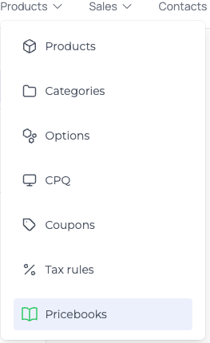
Go to the Product in your HeadQ dashboard.
-
Open the Pricebooks
-
Click Create New Pricebook.
-
Add a name and (optionally) a description.
-
Save the Pricebook.
You can edit default prices for each product directly within the Pricebook view.
Editing Option / Variation
To edit option / Variation-level pricing (e.g., for product variants or configurations):
-
Go to the Product.
-
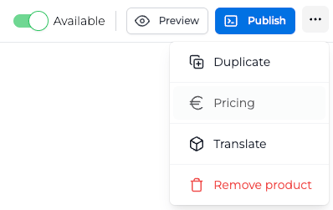
Click the three-dot menu
-
Select Pricing to adjust option / variation-specific pricing per Pricebook and currency.
How Pricebooks Are Selected
There are two ways to define how pricebooks are selected for visitors:
1. Automatic customer location (recommended for simple setups)
HeadQ can automatically detect the visitor’s country and select the appropriate pricebook based on their location.
This method is ideal when:
- You don’t have separate country-specific pages
- You want a simple, automatic setup
- Pricing is purely based on where the visitor is accessing the site from
👉 Note: This method only considers the visitor’s location. It does not take into account which page they are currently on.
2. Script-based selection (via embed script)
Pricebooks can also be controlled via the HeadQ embed script on your website.
This method is ideal when:
- You have dedicated country or region-specific pages (e.g.
/fi,/de,/us) - You want full control over which pricebook is shown
- You need consistent pricing regardless of the visitor’s physical location
👉 Important: If the script is used, it overrides the automatic customer location setting. Read more about how to install the HeadQ Script.
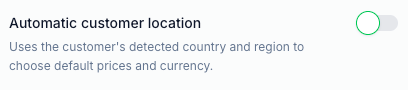
Enabling Automatic Customer Location
To enable automatic location-based pricebook selection:
- Go to Settings → Model
- Enable Automatic customer location
When to Use Which Method?
Use Automatic Customer Location when:
- Your site is not split into country-specific pages
- You want a quick and easy setup
- Pricing should follow the visitor’s current location
- You want to show location-based pricing and currency on general (non-country-specific) pages, even if you use script-based country pages elsewhere
Use Script-based Selection when:
- You have country-specific landing pages
- You want to ensure the correct pricebook is always shown for that page
- You want to avoid mismatches caused by users browsing from abroad
Important Consideration
If you are only using automatic customer location (without the script), pricing is always based on the visitor’s current physical location.
For example:
- A Finnish user traveling abroad visits your Finnish page
- Without the script, they may see pricing for the country they are currently in
- This can lead to incorrect pricing being shown
Using the script ensures that the pricebook always matches the intended page, not just the visitor’s location.
Default Script
<script type="text/javascript">
  (function(h,e,a,d,q) {
    h.__HQ__ = { store: 'test' };
    d = e.getElementsByTagName('head')[0];
    a = e.createElement('script');
    a.type = 'text/javascript';
    a.src = 'https://cdn.myheadq.com/static/headq.js';
    d.appendChild(a);
    q = e.createElement('link');
    q.rel = 'stylesheet';
    q.href = 'https://cdn.myheadq.com/static/headq.css';
    q.type = 'text/css';
    d.appendChild(q);
  })(window,document);
</script>
Setting the Country Programmatically
To explicitly define which country (and thereby which Pricebook and currency) should be used for the visitor, update the customerLocation in the script:
<script type="text/javascript">
  (function(h,e,a,d,q) {
    h.__HQ__ = {
  store: 'test',
  customerLocation: { country_code: 'DE' }
    };
    d = e.getElementsByTagName('head')[0];
    a = e.createElement('script');
    a.type = 'text/javascript';
    a.src = 'https://cdn.myheadq.com/static/headq.js';
    d.appendChild(a);
    q = e.createElement('link');
    q.rel = 'stylesheet';
    q.href = 'https://cdn.myheadq.com/static/headq.css';
    q.type = 'text/css';
    d.appendChild(q);
  })(window,document);
</script>
Replace 'DE' with the desired two-letter ISO country code (in uppercase). The selected country determines:
-
The currency used
-
The Pricebook applied
-
Any regional configurations from Settings → Region
Assigning Currency and Pricebook to a Country
To define which Pricebook and currency each country should use:
-
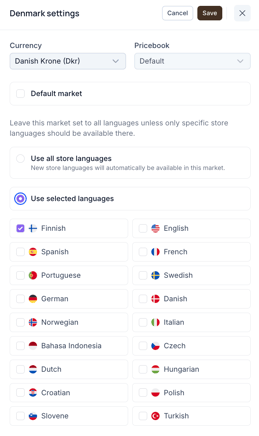
Go to Settings → Region →Market selection in your HeadQ admin.
-
Select the country you want to configure.
-
Assign the default currency, language, and Pricebook for that country.
Combined with the country code in your embed script, these settings ensure customers automatically see the correct pricing based on their region.
Using One Pricebook Across Multiple Countries
Even though the embed script specifies a single country using the customerLocation.country_code field (e.g. DE for Germany), you can use the same Pricebook / script for multiple countries if they all:
-
Use the same currency (e.g. EUR)
-
Share identical pricing for the included products
Example
If Germany, Finland, and France all use the Euro and follow the same pricing logic, you only need one Pricebook / script (e.g. "EUR - Germany"). You can set the script’s country_code to DE .
🟨 Important Notes
-
Make sure pricing remains identical across all linked countries
-
If any country diverges in pricing, create a dedicated Pricebook and update the embed script to reference that country's ISO code (e.g.
FRfor France).
👉 Remember: Only one HeadQ embed script can be present on a page at a time. If you have a different Pricebook and script for a country (like France), it must be used on a separate page dedicated to that country. -
Test changes by temporarily changing the
country_codevalue in the script to confirm correct price rendering. -
Use one Pricebook per region/currency combination where pricing differs.
-
Name clearly (e.g., "EUR - Germany", "USD - US") to make selection easier.