
Each customer company can have several users who sign in to your Storefront. You add and remove these users in HeadQ. Your customers can see their own team in the Storefront, but they can't add or remove users themselves.
This article is about your customers' users in the Storefront. To manage your own colleagues' access to HeadQ, see Managing Users in HeadQ.
Where: Contacts → Organizations → open a company → Users & access
Before you start: The customer's company must exist in HeadQ. See Storefront Login for how to add a new organization.
Storefront Login is a paid add-on. Without it, your Storefront works as a fully public store where all customers browse and buy as guests. Contact HeadQ if you want to enable the add-on.
1. Storefront Users List
The Users & access tab shows everyone at the company who can sign in to your Storefront.

- Name and Email — the user's details.
- Access — Enabled means the user can sign in. Disabled means their access has been revoked.
- Last login — when the user last signed in. Never means they haven't signed in yet.
- Resend invite — sends the invitation email again.
- Revoke — removes the user's access to the Storefront (see section 5).
- Restore — gives a disabled user their access back (see section 5).
The number of enabled and disabled users is shown under the Storefront users heading.
2. Adding a User
- Go to Contacts → Organizations and open the customer's company.
- Go to the Users & access tab.
- Click Add storefront access. The Add storefront access window opens.
- Fill in the user's details:
- Email (required) — the address the user signs in with. You can't change it later, so double-check it.
- First name (required) and Last name
- Language (required) — the language of the invitation email.
- If you want HeadQ to email the user an invitation, select Send invitation email (optional).
- Click Add storefront access.
The user can sign in right away, whether or not you send an invitation. If you don't send one, let the user know the Storefront address yourself.
Tip: If the person is already a contact in HeadQ, enter the same email address. Their existing contact is given access instead of creating a new one.
3. Adding Several Users at Once
If a company has many users, you can add them all in one go.
- On the Users & access tab, click Bulk add users.
- Either click Choose file and select a CSV file, or paste the rows into Or paste CSV rows. Each row contains the user's name and email address, separated by a comma:
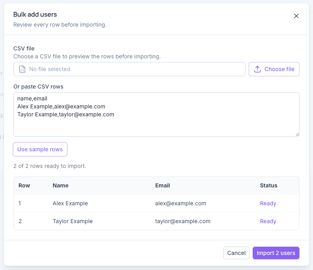
Click Use sample rows to see an example. - Check the preview table below the rows. Every row that can be imported shows the status Ready, and the line above the table tells you how many rows are ready to import.
- Click Import [number] users.
Note: Bulk import doesn't send invitation emails. The imported users can sign in right away, so let them know the Storefront address yourself, or send each of them an invitation with Resend invite on the Users & access tab.
4. The Invitation Email
If you choose to send an invitation, the user receives an email with a link to your Storefront. They open the link, request a one-time code and sign in. No password is needed.

If the user can't find the email, click Resend invite next to their name on the Users & access tab.
5. Revoking Access
When someone leaves the customer company or no longer needs access:
- Open the company and go to the Users & access tab.
- Click Revoke next to the user.
The user's Access changes to Disabled, and they can no longer sign in. Orders and cart templates they created stay with the company, so the rest of the team can still see and use them.
If you need to give the access back later, click Restore next to the user. Their access changes back to Enabled.
6. Moving a User to Another Company
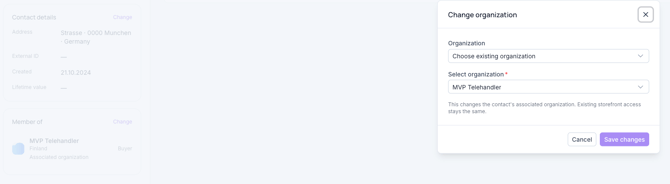
A user can belong to only one company at a time. If a user has been added to the wrong company, or has moved to another customer company, you can change their company.
- Go to Contacts → Contacts and open the user's contact page.
- In the Member of box, click Change. The Change organization window opens.
- In Select organization, choose the new company.
- Click Save changes.
The user's Storefront access stays the same. From now on, they see the new company's products, prices and orders.
7. What Your Customers See
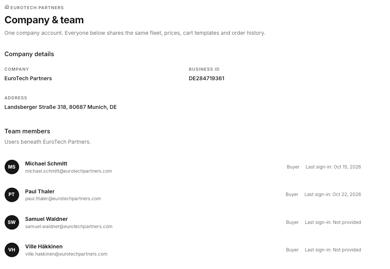
In the Storefront, every user can see their own company and team under Company & team: the company's details and a list of all team members with their last sign-in date. The list is read-only. To add or remove someone, the customer contacts you.
Under Account settings, each user can update their own first name, last name and phone number. Users can't change their email address. If a user's email address changes, add them again with the new address and revoke access from the old one.
Summary
Customer users are managed in HeadQ under Contacts → Organizations → [company] → Users & access. Click Add storefront access to add one user, or Bulk add users to import several from a CSV file. Sending an invitation email is optional, as users can sign in right away. Bulk import doesn't send invitations. Click Revoke to disable a user's access and Restore to give it back; the company keeps the user's orders and cart templates. To move a user to another company, use Change in the Member of box on their contact page. Customers see their team under Company & team but can't manage users themselves. If you have any questions, feel free to contact our support team.