
Storefront Login lets your customers sign in to your Storefront with their own account. Signed-in customers see their own products, orders and prices, and share them with colleagues from the same company.
You decide how open your Storefront is: public with optional sign-in, prices only after sign-in, or sign-in required for everything.
Storefront Login is a paid add-on. Without it, your Storefront works as a fully public store where all customers browse and buy as guests. Contact HeadQ if you want to enable the add-on.
1. Choosing Who Can Access Your Storefront
Where: Settings → Storefront → General → Customer sign-in
Choose one of four options:
|
Option |
What visitors see without signing in |
Good for |
|---|---|---|
|
Guest checkout only |
Everything. There is no sign-in, and all customers browse and buy as guests. |
A fully public webshop without customer accounts. This is how the Storefront works without the add-on. |
|
Optional sign-in |
Everything. Customers can browse and buy as guests, or sign in to use their own account. |
A public store that also offers extra benefits to your existing customers. |
|
Sign-in required to view prices |
Products, but no prices. Visitors can still send a quote request, but they must sign in to see prices. |
Showing your full range publicly while keeping prices for your customers only. |
|
Sign-in required to access store |
Nothing but the sign-in page. |
A closed portal for your dealers, partners or existing customers. |
To change the setting:
- Go to Settings → Storefront → General.
- Open the Customer sign-in dropdown.
- Select the option you want.
- Click Save.
Tip: If you choose Sign-in required to view prices or Sign-in required to access store, make sure your customers have their accounts ready before you switch. Otherwise they won't see prices, or can't access the store at all.
2. How Customer Accounts Work
Your Storefront is built for business-to-business sales, so every customer account starts from a company, not from an individual person.
- Organization — the customer's company, for example EuroTech Partners. Organizations are managed in HeadQ under Contacts → Organizations.
- Users — the people who work at that company and sign in to your Storefront. Every user belongs to one organization.
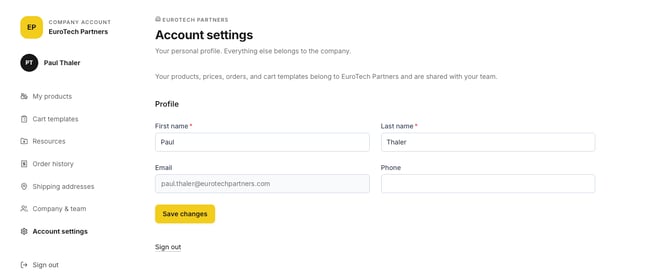
Everything except the user's own profile belongs to the company and is shared by all its users: products, prices, orders, cart templates and shipping addresses. When a new colleague is added to the company, they immediately see the same information as the rest of the team.
A company can also have its own pricebook. In that case, its users see their company-specific prices when they are signed in.
3. Giving a Customer Access to Your Storefront
Start by checking whether the customer's company already exists in HeadQ.
- Go to Contacts → Organizations.
- Type the company name in Filter by company name.
- If the company is on the list, click it to open it and continue to step 6.
- If the company isn't on the list yet, click Add organizations. The Create organization window opens.
- Fill in the company details and click Create organization:
- Business name (required)
- Country (required)
- Business ID
- On the company page, go to the Users & access tab and add the people who need access. See Managing Storefront Customer Users for step-by-step instructions.
4. How Customers Sign In
Customers don't need a password. They sign in with their email address and a one-time code:
- The customer opens your Storefront and enters their Email address.
- They click Email me a sign-in code.
- HeadQ sends a six-digit code to their email.
- They enter the code and are signed in.
Only invited users can sign in. If someone without an account tries to sign in, the Storefront tells them to ask their company's account administrator or you, the supplier, for an invitation.
5. What Customers Can Do After Signing In
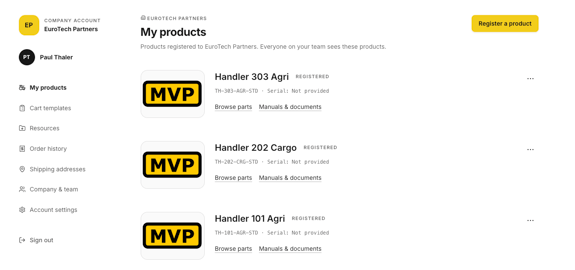
Signed-in customers get their own account area in the Storefront:
|
Page |
What it's for |
Read more |
|---|---|---|
|
My products |
Products the company has registered, such as machines they own |
|
|
Cart templates |
Saved carts for quick re-ordering |
|
|
Resources |
Documents and files you have shared with the customer |
|
|
Order history |
All orders placed by the company |
|
|
Shipping addresses |
The company's delivery addresses |
|
|
Company & team |
The company's users |
|
|
Account settings |
The user's own name and contact details |
6. What You See in HeadQ
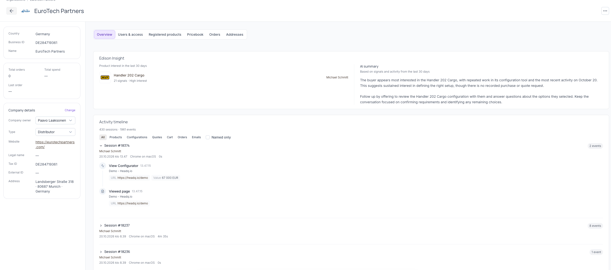
For every organization, HeadQ shows you the same information from your side, plus sales insights such as the customer's recent activity and the products they are most interested in. See Company Accounts in HeadQ.
Summary
Use Settings → Storefront → General → Customer sign-in to decide how open your Storefront is. Customer accounts always start from a company: find it under Contacts → Organizations or create it with Add organizations, then add its users under Users & access. Customers sign in with their email and a six-digit code, with no password needed. Everything except the user's own profile is shared across the company's team. If you have any questions, feel free to contact our support team.