
Every customer company has its own page in HeadQ. It brings everything about the company together in one place: its details, its Storefront users, registered products, prices, orders and addresses. It also shows what the company's people have been doing in your Storefront, so you know what they are interested in before you contact them.
Where: Contacts → Organizations
1. Finding a Company
The Organizations list shows all your customer companies.
- All organizations — every company in HeadQ.
- My organizations — only the companies where you are the Company owner (see section 3).
- Filter by company name — type to find a company quickly.
- The sort menu on the right changes the order, for example Newest first.
For each company, the list shows its Country, Active pricebook, Total spend and when someone from the company was Last seen in your Storefront.
Click a company to open its page. To add a new company, click Add organizations. See Storefront Login for details.
2. The Company Page at a Glance
The left side of the page shows the company's key information:
- Country, Business ID and Name
- Total orders, Total spend and Last order — calculated from all of the company's orders
- Company details — see section 3
The right side is divided into tabs:
|
Tab |
What it's for |
Read more |
|---|---|---|
|
Overview |
What the company is interested in and what its people have done in your Storefront |
|
|
Users & access |
The people who can sign in to your Storefront |
|
|
Registered products |
Products the company owns, such as machines |
|
|
Pricebook |
Which prices the company sees |
|
|
Orders |
The company's orders |
|
|
Addresses |
The company's delivery addresses |
3. Company Details
The Company details box holds the company's basic information.
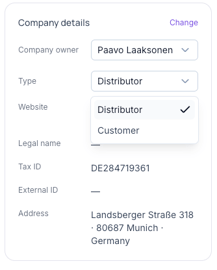
- Company owner — the person on your team who is responsible for this customer. Companies you own appear under My organizations in the Organizations list.
- Type — Customer or Distributor. The type is only a label that helps you group your companies. It doesn't change how the company works in HeadQ or in the Storefront.
- Website, Legal name, Tax ID, External ID and Address
You can change Company owner and Type directly from their dropdowns. To edit the other details, click Change.
4. Overview: Edison Insight and Activity Timeline
The Overview tab helps you understand what the company is looking for, so you can contact them at the right time with the right offer.
Edison Insight
Edison Insight shows which of your products the company has been most interested in during the last 30 days.
- Product interest — the products the company has shown interest in, with the number of signals, the interest level (for example High interest) and the person who showed the interest.
- AI summary — a short summary of what the company seems to be looking for, and a suggestion for how to follow up.
Signals come from what the company's people do on your Storefront and website: which products they view, which options they choose in the configurator, what they add to the cart, and so on. Edison Insight updates automatically, so you don't need to do anything to keep it current.
Tip: Read the AI summary before you call or email the customer. It tells you which product to talk about and which questions they might still have.
Activity Timeline
The Activity timeline lists every visit to your Storefront by the company's people. Each visit is called a session.
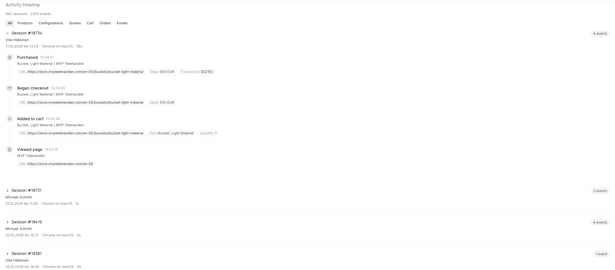
For each session, you see:
- the session number and the person's name
- the date and time, the browser and device, and how long the visit lasted
- the number of events in the session
Click a session to open it and see what happened step by step, for example Viewed page, Added to cart, Began checkout and Purchased. Each event shows details such as the page address, the product, the quantity and the value.
Use the filters above the list to show only certain types of activity: Products, Configurations, Quotes, Cart, Orders or Emails. Click All to show everything again.
Who is shown by name? A visitor is shown by name once HeadQ has identified them, for example when they sign in, send a quote request from your public website, become a lead or place an order.
5. Pricebook
The Pricebook tab decides which prices the company's users see when they are signed in to your Storefront.
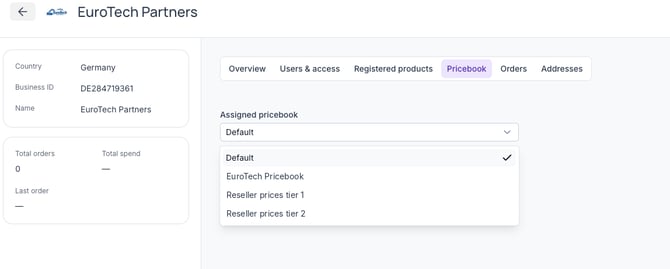
- Open the company and go to the Pricebook tab.
- Select a pricebook from the Assigned pricebook dropdown.
If you leave it on Default, the company sees your default prices. To create pricebooks, see Working with Pricebooks in HeadQ.
Summary
Find your customer companies under Contacts → Organizations, or use My organizations to see only the companies you own. The company page shows the company's details and totals on the left, and its users, products, prices, orders and addresses in tabs. On the Overview tab, Edison Insight tells you which products the company is interested in and suggests how to follow up, while the Activity timeline shows every Storefront visit step by step. Use the Pricebook tab to give the company its own prices. If you have any questions, feel free to contact our support team.