
Resources let you share documents with your customers in the Storefront: brochures, manuals, parts catalogs, price lists, videos and more. You decide who can see each document, for example all customers, only distributors, or only the companies that own a certain product.
Customers find their documents under Resources in their Storefront account area. Resources are only available to signed-in customers.
Where: Settings → Storefront → Resources
1. Uploading Resources
- Go to Settings → Storefront → Resources.
- Click New resource. You can also drag files straight onto the upload area at the top of the page.
- Choose a Category (see section 2).
- Under Who can see this?, choose who can see the documents (see section 3).
- Drag your files onto the upload area, or click it to browse for them. You can upload several files at once.
- Click Upload resources.
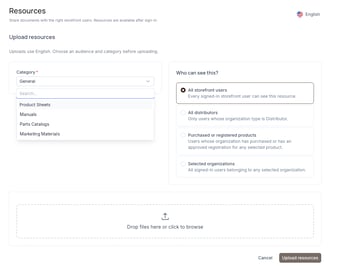
The category and audience you choose apply to all the files you upload at the same time. If different documents need different audiences, upload them in separate batches.
Supported files: Common document, presentation and video formats, for example PDF, PowerPoint and video files. The maximum file size is 10 MB.
Documents in Several Languages
Uploads use the language shown in the top-right corner of the page, for example English. To add a version of a document in another language, change the language there first and then upload the file in that language.
Customers see all documents, whatever their language. If a document has versions in several languages, the customer chooses which language to download or view.
2. Categories
Categories group your documents, for example Product Sheets, Manuals or Marketing Materials. Customers can use them to filter their Resources page.
- To use an existing category, select it from the Category dropdown.
- To create a new category, type its name in the search field of the dropdown. The new category is created when you upload.
To move a resource to another category change the category in Edit.
3. Choosing Who Can See a Resource
Under Who can see this?, choose one of four options:
|
Option |
Who can see the resource |
|---|---|
|
All storefront users |
Every signed-in customer |
|
All distributors |
Only customers whose company Type is Distributor |
|
Purchased or registered products |
Only customers whose company has bought, or has registered, any of the products you select |
|
Selected organizations |
Only customers from the companies you select |
When you choose Purchased or registered products, a Products field appears. Search for and select the products the document is about.
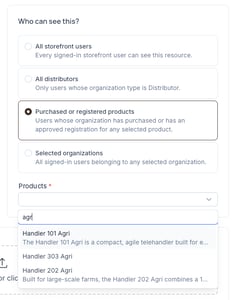
Tip: Use Purchased or registered products for manuals and other product-specific documents. Only the customers who own the product will see them, and they appear automatically when a customer registers the product. See Registered Products.
The company Type is set on the company page in HeadQ. See Company Accounts in HeadQ.
4. Managing Your Resources
The resources list shows all your uploaded documents.
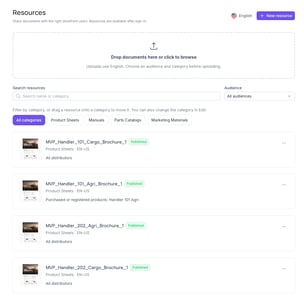
For each resource, you see its name, status (Published), category, language and who can see it.
- Search resources — find a document by name or category.
- Audience — show only the resources for a certain audience.
- Category buttons — click a category to show only its resources, or All categories to show everything.
- ⋯ — opens the resource's menu:
- Edit — change the resource, for example its category or who can see it.
- Unpublish — hide the resource from customers without deleting it.
- Remove — delete the resource.
5. What Your Customers See
Signed-in customers find their documents under Resources in the Storefront account area. They only see the documents you have shared with them.
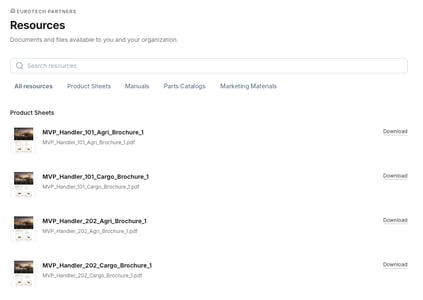
- Search resources — find a document by name.
- Category tabs — All resources shows everything, and the other tabs show one category each.
- Download — downloads the document. If the document is available in several languages, the customer chooses the language.
Customers can also reach this page from My products by clicking Manuals & documents next to a registered product. The page shows all documents shared with the company, not only the ones for that product.
Summary
Upload documents under Settings → Storefront → Resources by clicking New resource or dragging files onto the page. Choose a Category, or create a new one by typing its name, and decide Who can see this?: all signed-in customers, all distributors, companies that have bought or registered selected products, or selected companies. You can upload several files at once, each up to 10 MB, and add versions in other languages. Use the ⋯ menu to Edit, Unpublish or Remove a resource. Customers find their documents under Resources in their Storefront account, where they can search, filter by category and download them. If you have any questions, feel free to contact our support team.