
Congratulations on creating your product! 🎉
To make it available for purchase, follow the instructions below.
To make the product available on your website, HeadQ offers three installation options:
- Use a Buy link
- Use a Request a quote link
- Embed the product directly on your website
Preconditions
Before installing the product, make sure that:
- You have installed the HeadQ code snippet on your website
- You have successfully created a product
- You have assigned a tax rule to your product
Product installation options
You can find all installation options (Buy link, Request a quote link, and Embed snippet) by opening the product and clicking the Publish button in the top right corner. From there, you can copy the links or the embed code based on your preferred setup.

You can decide how customers interact with the product on your website.
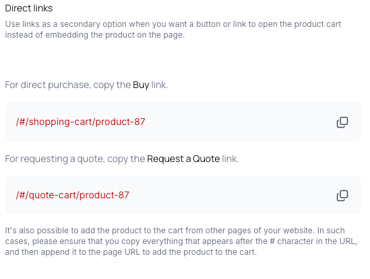
Buy link
Use the Buy link when you want customers to add the product directly to the shopping cart.
Copy the Buy link and use it as the call-to-action link on your product page.
Request a quote link
Use the Request a quote link when you want customers to request a quote instead of purchasing directly.
Copy the Request a quote link and use it as the call-to-action link on your product page.
You can also use both links on the same product page. For example, one button can allow customers to buy directly, while another button lets them request a quote for larger quantities.
Embed product
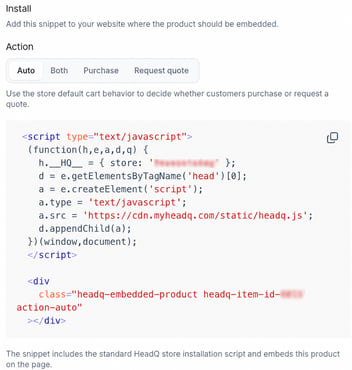
You can also embed the product directly on your website.
When using the embed option, HeadQ provides a snippet that includes the standard HeadQ store installation script and embeds the selected product on the page.
When creating the embed snippet, you can choose how the product should work:
Auto
Uses the store's default cart behavior to decide whether customers purchase or request a quote.
Both
Shows buttons for both purchasing and requesting a quote.
Purchase
Shows a button for purchasing the product.
Request quote
Shows a button for requesting a quote.
Copy the embed snippet and add it to the page where you want the product to appear.
Layout and spacing
When embedding a product, it will adapt to the space available on your page.
For the best user experience, we recommend a minimum width of 800px. At this width, the product is displayed in two columns: images on the left and selections on the right.
If the available space is narrower than this, the layout will automatically stack the elements vertically.
How does “add to cart” work?
When a user clicks the Buy or Request a quote link, HeadQ opens a modal on top of the page using the anchor link.
When installing the product, you are asked about the product page URL. This ensures that the product layer is triggered on top of that specific product page.
In some cases, you may not have a unique product page, for example when using a product listing page. In that case, you can trigger the buying or quote request process from any page by copying everything that appears after the # character in the URL and appending it to the page URL.
For example:
#/shopping-cart/product-1
Alternative method: pre-made button
Another way to install a product on your existing website is to use the pre-made Button provided by HeadQ.
The Button can be configured to either purchase or request a quote.
For detailed instructions, review the separate guide here.